
Simulation & Playback
Simulation & Playback
Section titled “Simulation & Playback”Visualize your robot's path with a physics-based simulation. This tool helps you verify timing, check for collisions, and ensure smooth motion before running code on the real robot.
Playback Controls
Section titled “Playback Controls”Located at the bottom of the screen, the control bar manages the simulation:
- Play/Pause: Start or stop the animation. (Shortcut:
Space) - Timeline Scrubbing: Drag the slider to jump to any point in the path. A live hover preview with a Ghost Robot will appear.
- Speed Control: Adjust playback speed from 0.25x (slow motion) to 3.0x (fast forward).
- Loop: Toggle continuous looping of the animation.
Visual Aids
Section titled “Visual Aids”Enable these overlays in Settings to better understand robot behavior:
- Onion Skinning: Displays a trail of robot bodies at regular intervals. Helps visualize how the robot rotates and moves through complex curves.
- Velocity Heatmap: Colors the path line based on speed.
- Green: Slow movement or stopping.
- Red: Fast movement.
Physics & Accuracy
Section titled “Physics & Accuracy”The simulation uses your robot's configured constraints to predict real-world performance:
- Kinematics: Accurately models holonomic (omni-directional) movement.
- Velocity Limits: Respects the Max Velocity and Angular Velocity settings.
- Acceleration: Accounts for Max Acceleration to predict realistic travel times. Travel time estimates include acceleration, and distance on curved paths is measured along the curve instead of as straight segments.
- Braking: Uses Max Deceleration, or the braking coefficients if you enter them in the Motion settings.
- Headings: Large heading changes take the short way around. Before its first path, the robot faces the way that path starts, even when the first path is inside a macro, so exported code starts from the same heading as the preview.
- Turns: By default the robot turns while it drives, as Pedro does. Turn on Stop to Turn in the Motion settings to have it stop and turn in place before a path that starts at a different heading.
Chained Paths
Section titled “Chained Paths”When paths are chained, the robot doesn't stop at the join. Turtle Tracer simulates the corner the way Pedro Pathing drives it:
- The robot can't turn instantly, so it carries on past the join, swings out, and steers back onto the next path (overshooting).
- The field shows the swing as a dashed line, the playback follows it, and the time includes it.
- The Table counts the swing in the time of the path it leads onto. The speed tooltip and heatmap skip the part of a path the robot doesn't drive.
- Sharp corners, and corners where the robot misses the join point, get a warning. See Path Validation.
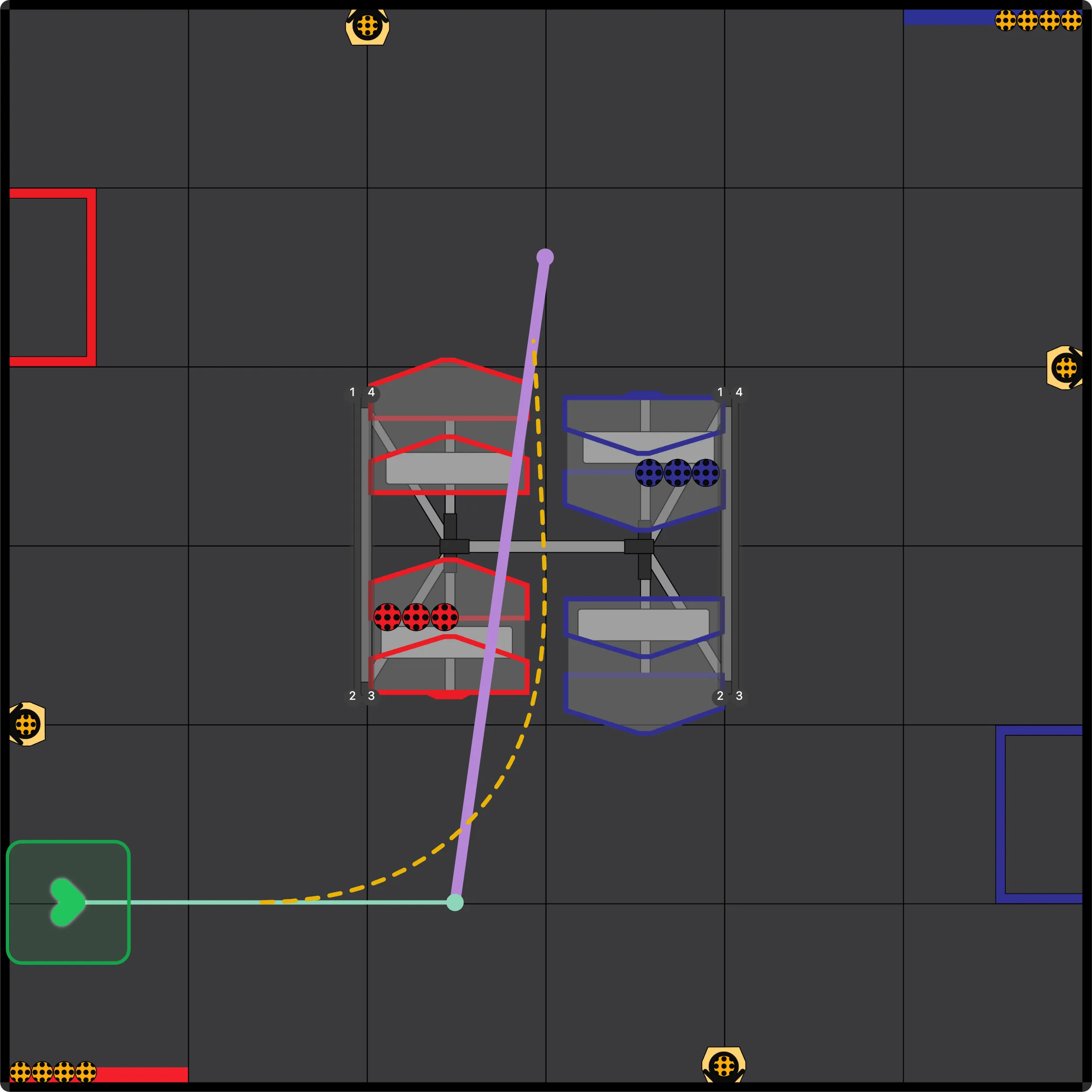
How hard the robot steers back depends on the Pedro Pathing Version, Translational P, and Path Settle Time settings. Match them to your robot's values.
Verification Tools
Section titled “Verification Tools”Ensure your path is safe and efficient:
- Collision Detection: Potential collisions with field boundaries or defined obstacles are marked with warning indicators. Learn more about Path Validation.
- Real-time Feedback: The "Current Robot Position" panel displays live X/Y coordinates and heading during playback.
- Event Markers: Visual dots on the timeline show exactly when events (like "Intake" or "Shoot") will trigger. Learn more about Event Markers.
Path Statistics
Section titled “Path Statistics”Use the Stats button to see the total estimated duration and distance of your routine, with timing, length, and peak speed for each segment. The Graphs tab plots velocity and acceleration, and Insights lists warnings such as wheel slip and chained corners.